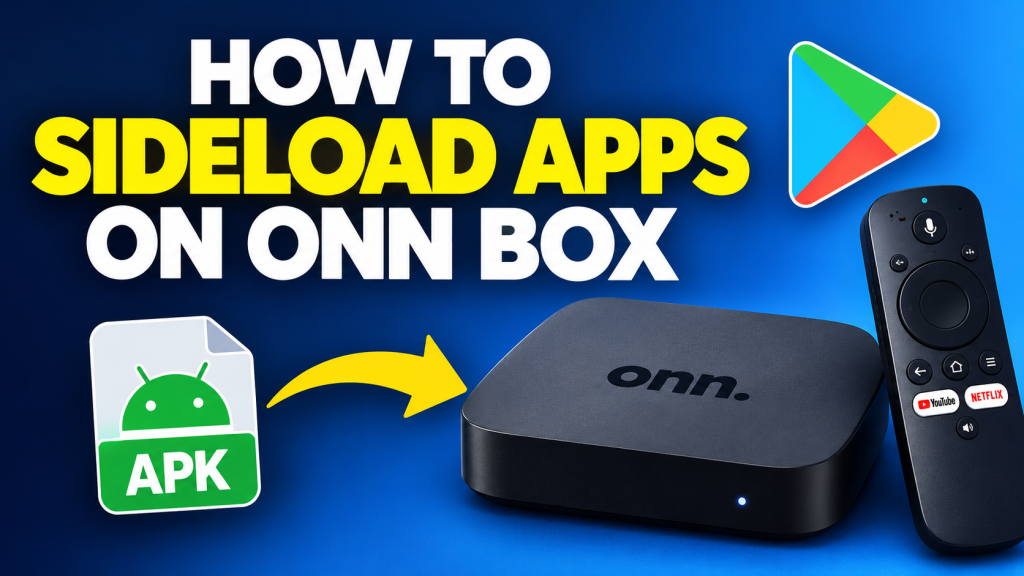
If you want to install an app on your Onn Box that isn’t available in the Google Play Store, you can sideload it using an APK file.
This guide shows you how to enable Developer Options, adjust Play Protect settings when necessary, and prepare your Onn Box for APK installation.
Step 1: Enable Developer Options on Onn Box
Before sideloading apps, enable Developer Options on your Onn Box.
- Open Settings.
- Select System.
- Select About.
- Scroll down to Android TV OS Build.
- Click Android TV OS Build 7 times.
- Continue until you see “You are now a developer.”
Developer Options are now enabled.
Step 2: Open Developer Options
After enabling Developer Options:
- Go back to Settings.
- Open System.
- Select Developer Options.
Depending on your Onn Box model or Android TV version, the exact location of Developer Options may vary.
Step 3: Install a Sideloading App
To install an APK, you’ll need a method for downloading or transferring the APK to your Onn Box.
A common option is the Downloader app.
- Open the Google Play Store.
- Search for Downloader.
- Install the official Downloader app.
- Open Downloader.
- Enter the APK download address provided by the app developer or service you trust.
- Download the APK.
- Follow the on-screen instructions to install it.
Only download APK files from sources you trust.
Step 4: Allow Installation From the Relevant Source
On newer Android TV versions, permission to install apps from unknown sources is normally controlled per app.
If Android blocks an APK installation:
- Open Settings.
- Go to Apps.
- Find the app you are using to install the APK, such as Downloader or a file manager.
- Open Install unknown apps or the corresponding permission.
- Allow that app to install unknown apps.
- Return to the APK installation and try again.
The wording can differ depending on your Onn Box and Android TV version.
Step 5: Check Google Play Protect
Google Play Protect automatically checks applications for potentially harmful software.
If Play Protect displays a warning during an APK installation, review the warning before proceeding.
For troubleshooting, you can check your Play Protect settings:
- Open Google Play Store.
- Select your profile icon.
- Select Play Protect.
- Open Settings.
We recommend keeping Play Protect enabled whenever possible. If you temporarily change a security setting for troubleshooting, turn it back on afterward.
Onn Box APK Installation Not Working?
If an APK won’t install, check these common causes:
APK Isn’t Compatible
Make sure the APK supports your Android TV version and device architecture.
Not Enough Storage
Go to your device’s storage settings and remove unused applications or files if necessary.
Unknown Apps Permission
Check that the application you’re using to install the APK has permission to install unknown apps.
APK Download Failed
Delete the incomplete download and download the APK again from the application’s official or trusted source.
App Won’t Open After Installation
The application may not support Android TV or your specific Onn Box model.
How to Sideload IPTV Apps on Onn Box
If you’re installing an IPTV application on your Onn Box, the general process is the same:
- Enable Developer Options.
- Install a trusted downloader or file manager.
- Download the compatible application APK.
- Allow installation from that source when prompted.
- Install the application.
- Open the application and complete its setup instructions.
Make sure any IPTV service or content you use complies with applicable laws and licensing requirements.
Need Help With Your Onn Box Setup?
If you’re having trouble installing or setting up your IPTV application on an Onn Box, contact NextVIPTV support for assistance.